Monitoring Interfaces
Experimaestro provides two interfaces for monitoring experiments and jobs: a Web UI and a Terminal UI (TUI). Both can be used during experiment execution or to monitor a workspace after the fact.
Web Interface
The web interface provides a browser-based dashboard for monitoring experiments.
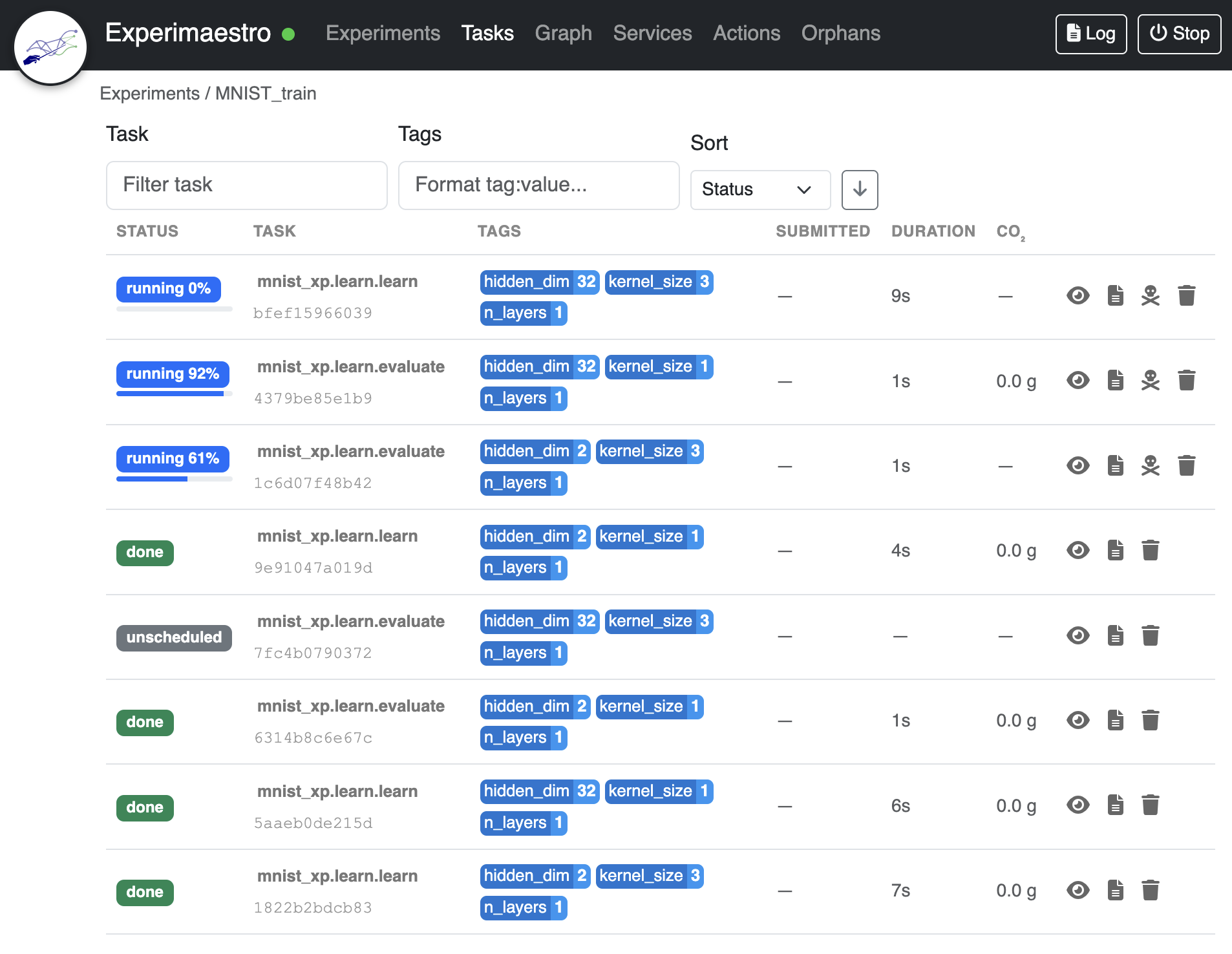
Tasks view: filter, sort and monitor jobs by status, tags, duration and CO₂, with live progress and per-job logs/actions.
Starting the Web UI
During experiment execution:
from experimaestro import experiment

# Port enables the web interface
with experiment(workdir, "my_experiment", port=12345) as xp:
    # Tasks submitted here can be monitored at http://localhost:12345
    task = MyTask.C(...).submit()
Standalone monitoring:
# Monitor an existing workspace
experimaestro experiments monitor --workdir /path/to/workspace --port 12345
Then open http://localhost:12345 in your browser.
Features
Job List: View all jobs with their status (pending, running, done, error)
Real-time Updates: WebSocket-based updates as job states change
Job Details: Click on a job to view parameters, logs, and output paths
Experiment Filtering: Filter jobs by experiment ID
Log Viewing: View stdout/stderr logs directly in the browser
Remote Access
If your jobs run on remote machines (e.g., SLURM cluster), use the --host option
to make the server accessible:
experimaestro run-experiment --host 0.0.0.0 --port 12345 experiment.yaml
Terminal UI (TUI)
The TUI provides an interactive terminal-based interface using Textual. It’s useful when working over SSH or when you prefer staying in the terminal.
Starting the TUI
During experiment execution:
# Use --console flag to launch TUI instead of web UI
experimaestro run-experiment --console experiment.yaml
Standalone monitoring:
experimaestro experiments monitor --workdir /path/to/workspace --console
Features
Experiments Table: Lists experiments with ID, hostname, jobs count, status, and duration
Job Table: Scrollable list of jobs with status indicators
Live Logs: Real-time log output panel
Keyboard Navigation: Navigate and interact using keyboard shortcuts
Status Bar: Shows experiment status and connection info
Keyboard Shortcuts
Press ? in the TUI to show the help screen with all shortcuts.
Navigation:
Key |
Action |
|---|---|
|
Quit application |
|
Go back / Close dialog |
|
Refresh data |
|
Show help |
|
Switch to Jobs tab |
|
Switch to Services tab |
Experiments:
Key |
Action |
|---|---|
|
Select experiment |
|
Show experiment runs |
|
Delete experiment |
|
Kill all running jobs |
|
Sort by status |
|
Sort by date |
Jobs:
Key |
Action |
|---|---|
|
View job logs |
|
Delete job |
|
Kill running job |
|
Open search filter |
|
Clear search filter |
|
Sort by status |
|
Sort by task |
|
Sort by date |
|
Copy folder path |
Log Viewer:
Key |
Action |
|---|---|
|
Toggle follow mode |
|
Go to top |
|
Go to bottom |
|
Sync now (remote) |
|
Close viewer |
Services:
Key |
Action |
|---|---|
|
Start service |
|
Stop service |
|
Copy URL |
Orphan Jobs:
Key |
Action |
|---|---|
|
Refresh |
|
Sort by task |
|
Sort by size |
|
Delete selected |
|
Delete all |
|
Copy folder path |
Clipboard Support
The TUI supports clipboard operations (like f to copy path) that work both
locally and in remote/tmux environments.
How it works:
First tries
pyperclipfor local clipboard accessFalls back to OSC 52 escape sequences when pyperclip fails (e.g., over SSH)
OSC 52 supported terminals:
iTerm2 (macOS)
kitty
alacritty
Windows Terminal
Most modern terminal emulators
tmux configuration:
For clipboard to work inside tmux over SSH, add these lines to ~/.tmux.conf:
set -g set-clipboard on
set -g allow-passthrough on   # Required for tmux 3.2+
Then reload tmux configuration: tmux source-file ~/.tmux.conf
Python API
The TUI can also be launched programmatically:
from experimaestro.tui import ExperimentTUI

tui = ExperimentTUI(
    workdir=Path("/path/to/workspace"),
    show_logs=True,
)
tui.run()
Choosing Between Web and TUI
Use Case |
Recommended |
|---|---|
Local development |
Web UI |
Remote SSH session |
TUI |
Sharing with team |
Web UI (with |
Minimal dependencies |
TUI |
Detailed log analysis |
Web UI |
Quick status check |
TUI |
Remote Monitoring via SSH
When experiments run on remote servers (e.g., HPC clusters, cloud instances),
you can monitor them from your local machine using SSH tunneling. The ssh-monitor
command establishes an SSH connection, starts a monitoring server on the remote
host, and communicates via JSON-RPC over the SSH channel.
Basic Usage
experimaestro experiments ssh-monitor HOST REMOTE_WORKDIR [OPTIONS]
HOST: SSH host in standard format (e.g.,
user@server,server, or SSH config alias)REMOTE_WORKDIR: Path to the workspace directory on the remote server
Examples
# Basic SSH monitoring (console TUI by default)
experimaestro experiments ssh-monitor myserver /home/user/experiments

# With web UI instead of console TUI
experimaestro experiments ssh-monitor user@cluster.example.com /scratch/experiments --web

# Custom port for web interface
experimaestro experiments ssh-monitor myserver /workspace --port 8080

# With SSH options (e.g., custom port, identity file)
experimaestro experiments ssh-monitor myserver /workspace -o "-p 2222" -o "-i ~/.ssh/cluster_key"

# Specify path to experimaestro on remote host
experimaestro experiments ssh-monitor myserver /workspace --remote-xpm /opt/conda/bin/experimaestro
Options
Option |
Description |
|---|---|
|
Use web UI instead of console TUI (console is default) |
|
Port for local web server (default: 12345) |
|
Path to experimaestro executable on remote host |
|
Additional SSH options (can be repeated) |
How It Works
Connection: The client establishes an SSH connection to the remote host
Server Start: On the remote host, experimaestro starts in server mode, reading commands from stdin and writing responses to stdout
JSON-RPC Protocol: Commands and responses are exchanged using JSON-RPC 2.0
File Sync: When needed (e.g., for TensorBoard logs), files are synchronized on-demand using rsync over SSH
Real-time Updates: The server sends notifications when job states change
Configuring SSH Settings in settings.yaml
Instead of passing all options on the command line, you can configure SSH settings
per-workspace in your ~/.config/experimaestro/settings.yaml:
workspaces:
  - id: my-cluster
    path: /scratch/experiments
    ssh:
      host: user@cluster
      shell_init: "source /etc/profile; module load python/3.10"
      uv_offline: true
      python: python3
Then use --workspace to load settings automatically:
experimaestro experiments ssh-monitor --workspace my-cluster
See Remote Workspaces (SSH) for all available settings.
Remote experimaestro Installation
By default, the SSH client runs uv tool run experimaestro==<version> on the
remote host. This requires:
uvinstalled on the remote hostNetwork access to PyPI (or a local mirror)
For environments without direct PyPI access (common on HPC clusters), use
--uv-offline or configure uv_offline: true in workspace SSH settings.
If the remote host requires environment setup before running commands
(e.g., module load), use --remote-shell-init or configure shell_init
in workspace SSH settings.
Alternatively, specify a pre-installed experimaestro path:
# If experimaestro is installed in a virtualenv
experimaestro experiments ssh-monitor host /workspace --remote-xpm /path/to/venv/bin/experimaestro

# If installed system-wide
experimaestro experiments ssh-monitor host /workspace --remote-xpm experimaestro
Version Compatibility
The local and remote experimaestro versions should be compatible. The protocol version is checked on connection, and a warning is shown if versions differ significantly. For best results, use the same version on both sides.
SSH Output
Remote server output (logs, warnings) is displayed locally with a colored
[SSH] prefix to distinguish it from local output. This helps debug
connection issues or see remote server activity.
Troubleshooting
uv tool run hangs (no output):
The remote host likely has no outbound HTTPS access to PyPI
Use
uv_offline: truein workspace SSH settings or--uv-offlineCLI flagEnsure the package is already cached:
ssh host "uv tool install experimaestro==X.Y.Z"(run once with network access)
Wrong Python version or missing modules:
Non-interactive SSH skips
.profile/.bash_profileUse
shell_initin workspace SSH settings or--remote-shell-initto run setup commands (e.g.,source /etc/profile; module load python/3.10)
Connection refused or timeout:
Verify SSH access:
ssh user@host echo "connected"Check if the remote workspace exists
Ensure experimaestro is accessible on the remote host
Jobs not appearing:
The remote database may need synchronization:
ssh user@host "experimaestro experiments sync --workdir /path/to/workspace"
Services not working (e.g., TensorBoard):
Services are recreated locally from saved state
Some services may require file synchronization; this happens automatically
Check that rsync is available on both machines
Database Synchronization
Both interfaces read job information from the workspace database. If jobs are not appearing, synchronize the database:
experimaestro experiments sync --workdir /path/to/workspace
This is needed when:
Jobs were created before the database was introduced
Jobs were created by external processes
The database is out of sync with the filesystem